Setting up Outlook Express Directly
If you have problems
following the instructions below, please email helpdesk@astro.swin.edu.au.
Be sure to describe your problem in detail along with your machine type,
Operating system and version and name of the software that is causing the
problem.
There are several important settings that need to be adjusted to Outlook Express
to access SAO newsgroups. Please follow this process below to ensure you can
get up an running nice and quickly:
| 1. |
Start Outlook Express |
|
| 2. |
In the right hand window, click on Setup a Newsgroups
account... |
 |
| 3. |
Enter your name. This is the name which will be displayed on all your newsgroup
postings. Click Next |
 |
| 4. |
Enter your preferred email address. (You do not have to worry about being "spammed"
as these newsgroups are not available to the outside world, so don't use spam blockers). Click
Next |
 |
| 5. |
Enter ilearn.swin.edu.au in the News (NNTP)
Server field and click the My news server requires me to log on
box. Click Next |
 |
| 6. |
Enter your Account Name (your SAO student ID and password). Check the Remember Password checkbox and ensure that the Log on using Secure Password Authentication (SPA) checkbox is NOT CHECKED. Click Next |
 |
| 7. |
Click on Finish
|  |
| 8. |
Click on Close and then you will be prompted to download newsgroups from the account you just added. Click No |
 |
| 9. |
From the Tools menu, choose Options |
 |
| 10. |
Switch to the Read tab and make sure that in the News section, the "Get [300] headers at a time" is unchecked |
 |
| 11. |
Switch to the Send tab, and make sure that thew News Sending Format is set to plain text. Then click on the Plain Text Settings... button |
 |
| 12. |
Ensure you have the Message Format set to "MIME" and the Encode Text Using set to "None". Click "OK". |
 |
| 13. |
Switch to the Maintenance tab, and make sure that you do not have the "Delete news messages [5] days after being downloaded" selected. |
 |
| 14. |
Click OK and OK again to return to the main Outlook Express window. Select your ilearn.swin.edu.au newsgroup and you will be prompted to download messages, click Yes |
 |
| 15. |
Select all the newsgroups you wish to subscribe to. If you hold down the CTRL key whilst selecting newsgroups, you can select more than one newsgroup at a time. Then click on the Subscribe button. |
 |
| 16. |
All your selected newsgroups will now be subscribed. Click on OK to close the subscriptions window. |
 |
| 17. |
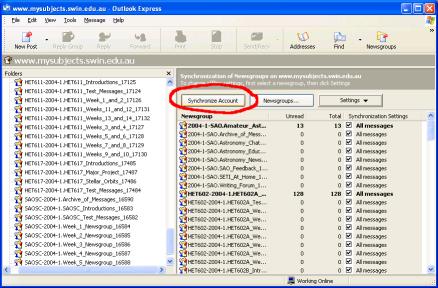
Now all the newsgroups you have subscribed to will appear in the right hand panel. To set up the synchronisation settings correctly, select all of these newsgroups and then click on the Settings button and choose All Messages. |
 |
| 18. |
Now click on the Synchronise Account button. This will fully download and stored every message in every newsgroup you subscribed to above. |
 |
| 19. |
Outlook Express may take a while to synchronise, depending on the speed of
your internet connection. |
 |
| 20. |
And thats it! You're ready to go. Every time you want to download new messages from the newsgroup, just you the Synchronise Account button and all new messages will be downloaded. |
|
Use the "Back" Button
on your Browser to return to your Unit website