






Submitting Newsgroup Contributions with Blackboard
- The first thing you will need to do is copy and paste your best
newsgroup posting from Blackboard into a Word or text file. To do
this,
- first go the the newsgroup that contains your best postings and
view that posting. With your cursor, highlight your text and copy
with Ctrl-c
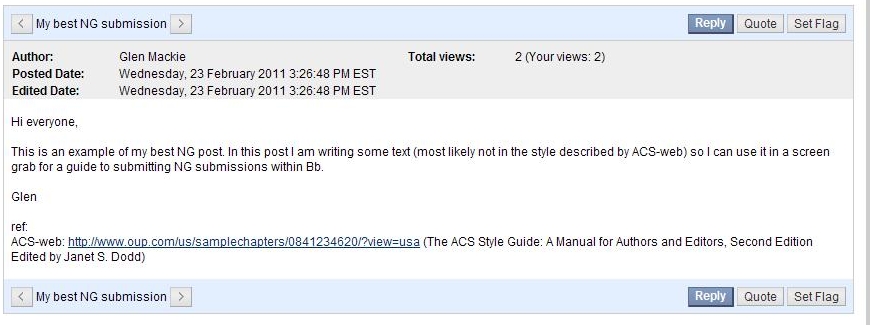
- then copy this text into a Word document by opening Word and
typing Ctrl-V to paste (in Word it can look something like the following:)
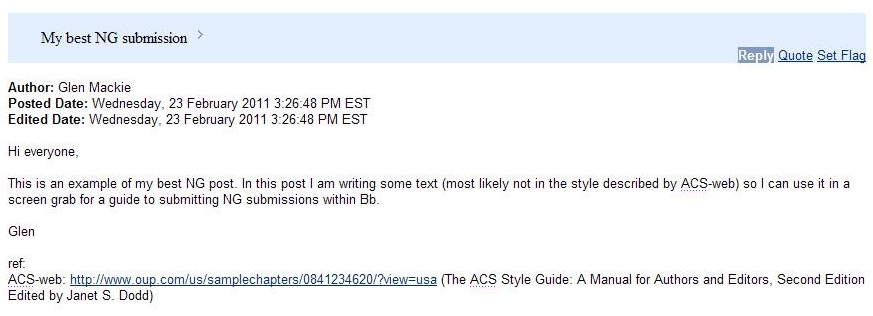
- then save the document (locally, on your computer) with the appropriate name (e.g. NG2-HET602-SarahMaddison.doc if you're in HET602 and your name is Sarah Maddison!)
- first go the the newsgroup that contains your best postings and
view that posting. With your cursor, highlight your text and copy
with Ctrl-c
- To submit an assessment item using Blackboard, go to the Assessment index link on your unit website. Then you need to:
- click on Assessment Items, then Newsgroups
- follow the link to the assessment submission area at the bottom of the page
- you'll see an icon like this:

- click on the NG Submission link next to the icon
- this takes you to the Upload Assignment page
- enter your details as asked, attach the file that contains your
assessment (e.g. your first Newsgroup submission file called
"NG1-HETxxx-YourName.doc").
Note: Your posting should be attached as a Word or text file, and NOT inserted in the "Comments" section. Also, the file name should be as indicated above, and must NOT include characters such as "#" or "/", or Blackboard will not upload the file.
- when you're finished be sure to click on the Submit button

