

Netscape Messenger Setup
If you have problems following the instructions below, please email helpdesk@astro.swin.edu.au. Be sure to describe your problem in detail along with your machine type, Operating system and version and name of the software that is causing the problem.The Netscape newsreader is called Messenger and is built into the Netscape Browser. These instructions are relevant to Netscape 4.77 which was distributed (many semesters ago!) on SAO CD-ROMs. Whilst it is possible to use version 4.77, we recommend using the latest version of Netscape (version 7.1) which can be freely be downloaded from Netscape here. If you wish to use the new version, then follow the Setting up Netscape 7.1 instructions. If you want to stick with 4.77, then follow these instructions:
Newsreader Setup
Attaching Images
Newsreader setup
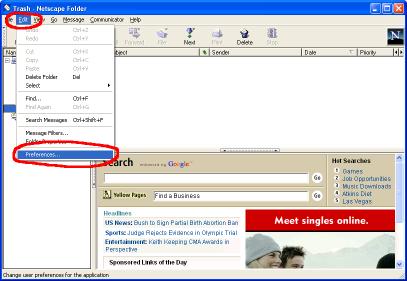
- Start Netscape Messenger. This can be done by pressing CTRL+2 in the navigator window
- From the Edit menu, choose Preferences.
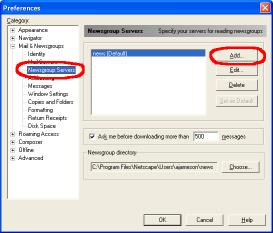
- In the left hand panel select Mail & Newsgroups then choose Newsgroup Servers. Then click on the Add button
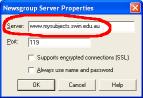
- A window will appear. In the Server field, enter ilearn.swin.edu.au. Then click OK
- Uncheck the "Always ask before downloading more than [500] messages" box. Click OK
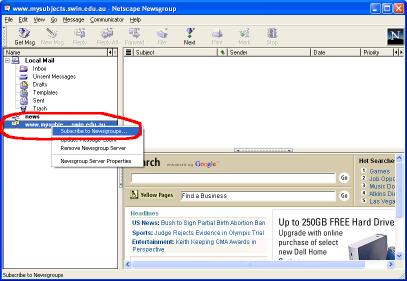
- Now right click on the newly added new server (ilearn.swin.edu.au), and select Subscribe to Newsgroups...
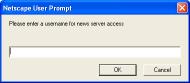
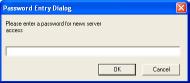
- You will be prompted to enter you username. This will be your 7 digit StudentID. Click OK. Then you will be prompted to enter your password, this will be your normal Student password. OK
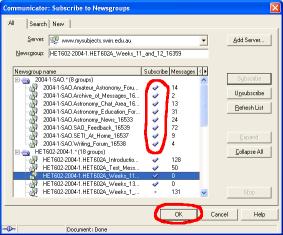
- This will authenticate you with the Swinburne Newsserver and bring up a list of all the newsgroups you can subscribe to. Expand all the subjects (by clicking on the +) and subscribe to all the newsgroups. This can be done by clicking in the Subscribe column next to each newsgroup. Then click on OK
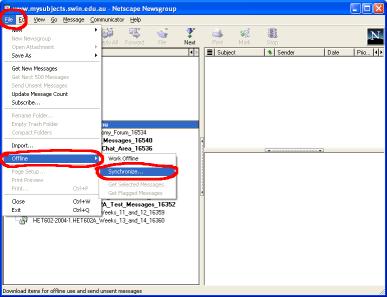
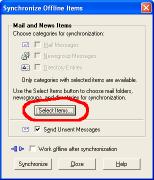
- Next, we will setup offline synchronisation, so that you can view messages when not connected to the internet. In the File menu, select Offline then select Synchronise.
- This will open the Synchroise Offline Items window. Click on the Select Items... button
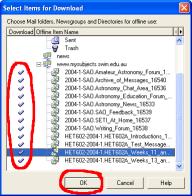
- This will open the Select Items for Download window. Expand the blackboard.swinburne.edu.au entry and you will see the list of all newsgroups you have subscribed to. For each newsgroup you want to synchronise, click in the download column. Then click on OK
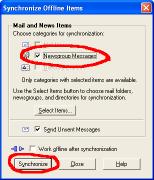
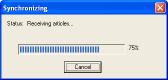
- Select the Newsgroup Messages check box, then click on the Synchorise button. This will fully download and synchronise your newsgroups
- This will fully download and synchronise your newsgroups. Anytime you want to synchronise your newsgroups, just dollow the above step.